Screens and pairing
Pair a player
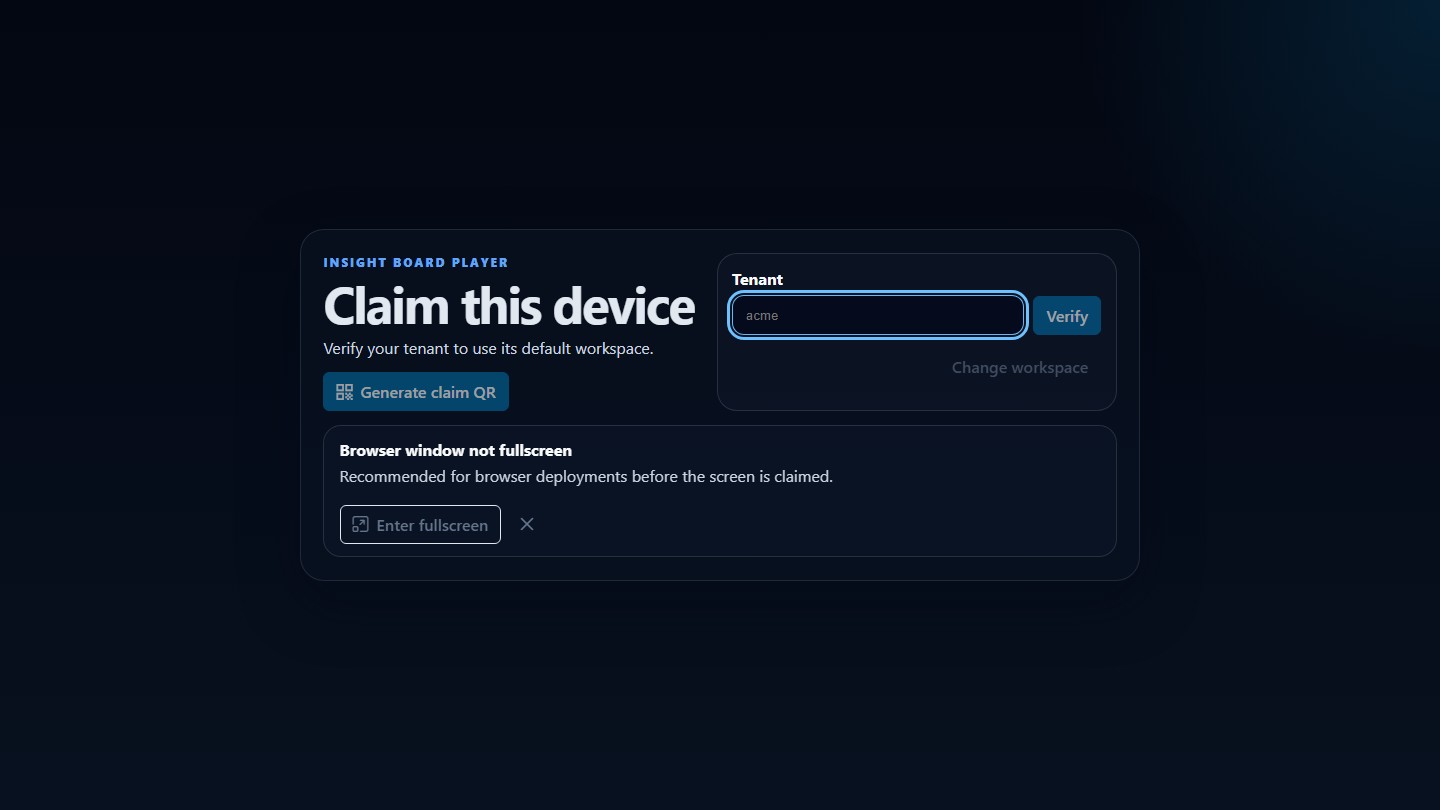
Section titled “Pair a player”- Open the player URL in a browser or configure it in Android.
- Select the workspace when requested and complete onboarding. Diagnostics are optional.
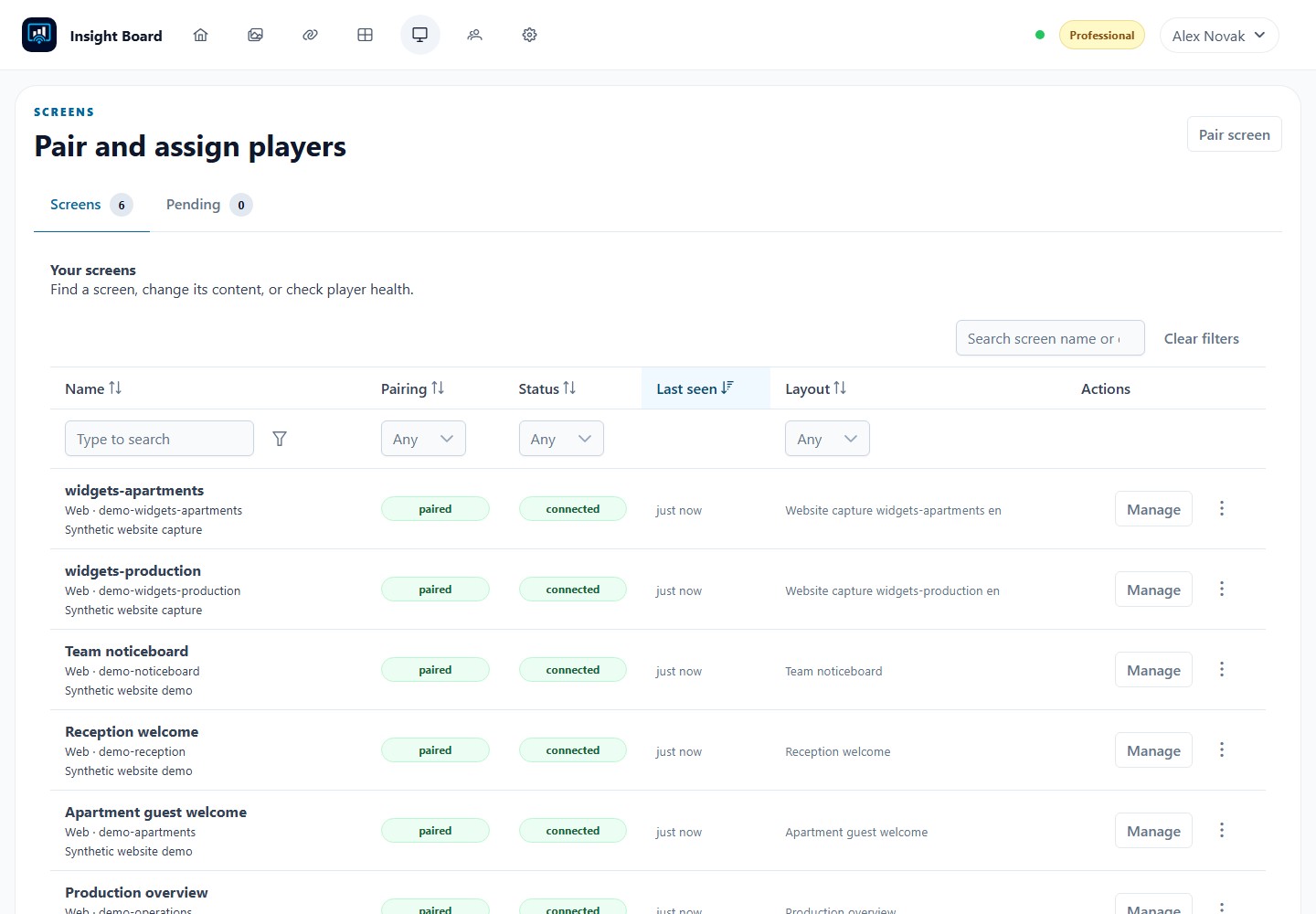
- Open Screens → Pair screen in the portal. Use the displayed claim code/link and the workspace PIN if configured.
- Claim the intended screen and assign a published layout. Keep the player open until playback is confirmed.
Claim sessions expire. Refresh an expired claim and use the current code rather than an old screenshot.
Screen settings
Section titled “Screen settings”A screen has a main layout and optional welcome layout. A single-scene welcome uses the workspace welcome duration; a multi-scene welcome plays a full cycle. Check fit/cover/stretch scaling on the device.
Online/offline status follows heartbeats and workspace tolerance. A closed player tab can correctly appear offline. Pending lists unclaimed devices.
Replace a device
Section titled “Replace a device”Unpair the old player before pairing its replacement. Device pairing and the screen record are separate; replacing a paired device does not inherently require another licensed screen. Protect claim links and device credentials. Offline devices cannot receive immediate revocation.